How to Use MyPerfectResume’s Resume Builder for Free

Our customers have been hired at: *Foot Note


Table of Contents
Get started with MyPerfectResume today!
- Build a resume on any device
- Pick an ATS-friendly template
- Tailor with AI copy suggestions
MyPerfectResume offers a suite of user-friendly tools and resources to help you create a professional resume that captures the attention of recruiters and hiring managers.
In this guide, we’ll walk through how to use our AI Resume Builder for free to access professionally written resume content, expert tips, and unlimited downloads in plain text format.
For additional customization, such as professional templates and downloads in multiple file formats, we offer several plans, including low-cost, 14-day access to all of our premium features.
How to Use Our Resume Builder for Free
Learn how to use MyPerfectResume’s Resume Builder for free, from accessing content suggestions and expert tips on how to write a resume to downloading your resume in plain text format.
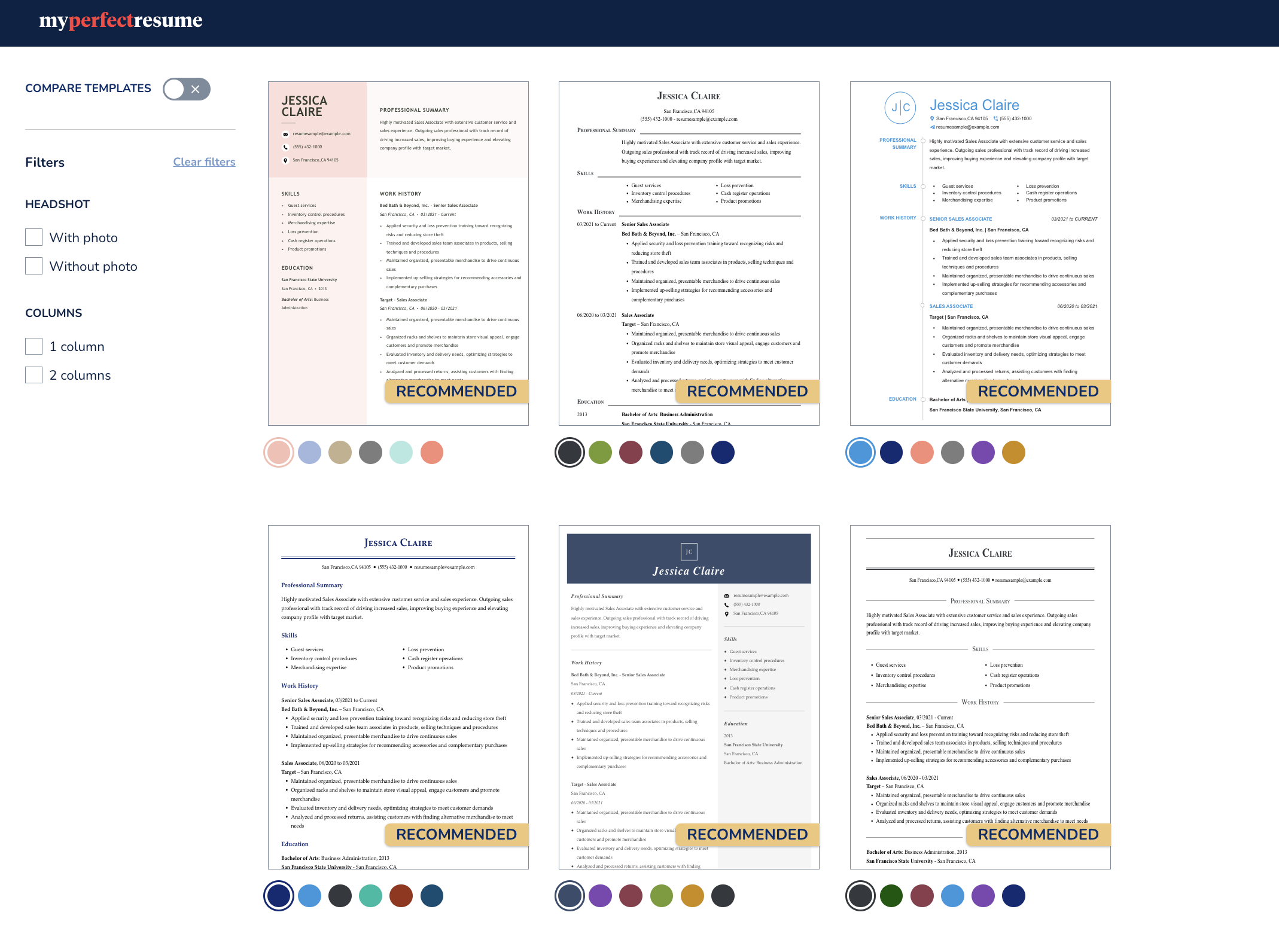
1. Select a resume template
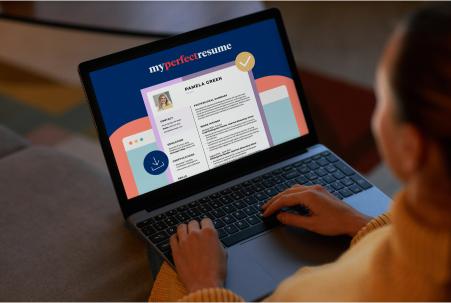
The first step for accessing our free resume-building features is to open MyPerfectResume’s Resume Builder on any device and follow the prompts.
Add your years of experience for tailored template recommendations. Choose a template from our selection of professionally designed layouts to get started.
Note that for MyPerfectResume’s Resume Builder, free downloads are in plain text format. Downloading our professional resume templates in PDF or Word format requires a premium plan.
2. Upload your resume or start fresh
After picking one of MyPerfectResume’s resume templates, you can decide whether you want to improve your existing resume or build a new one by following step-by-step prompts.
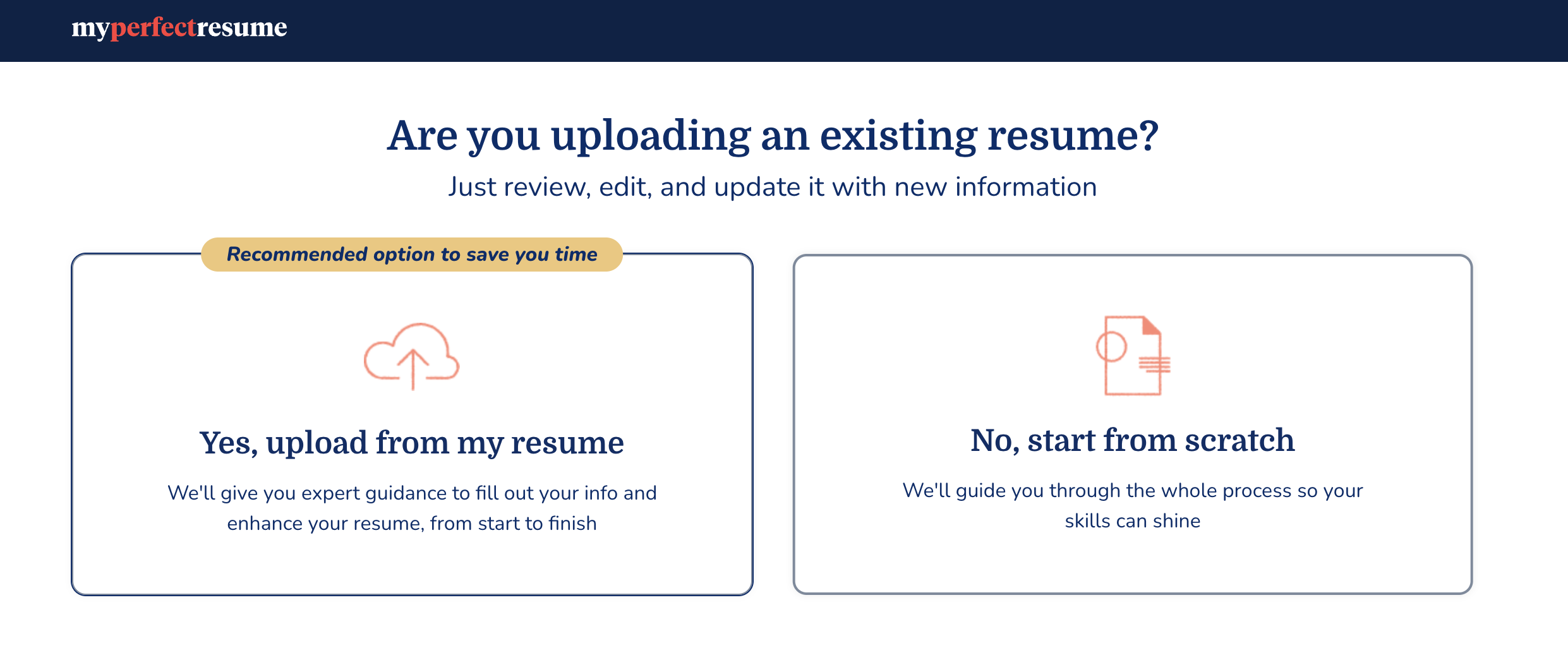
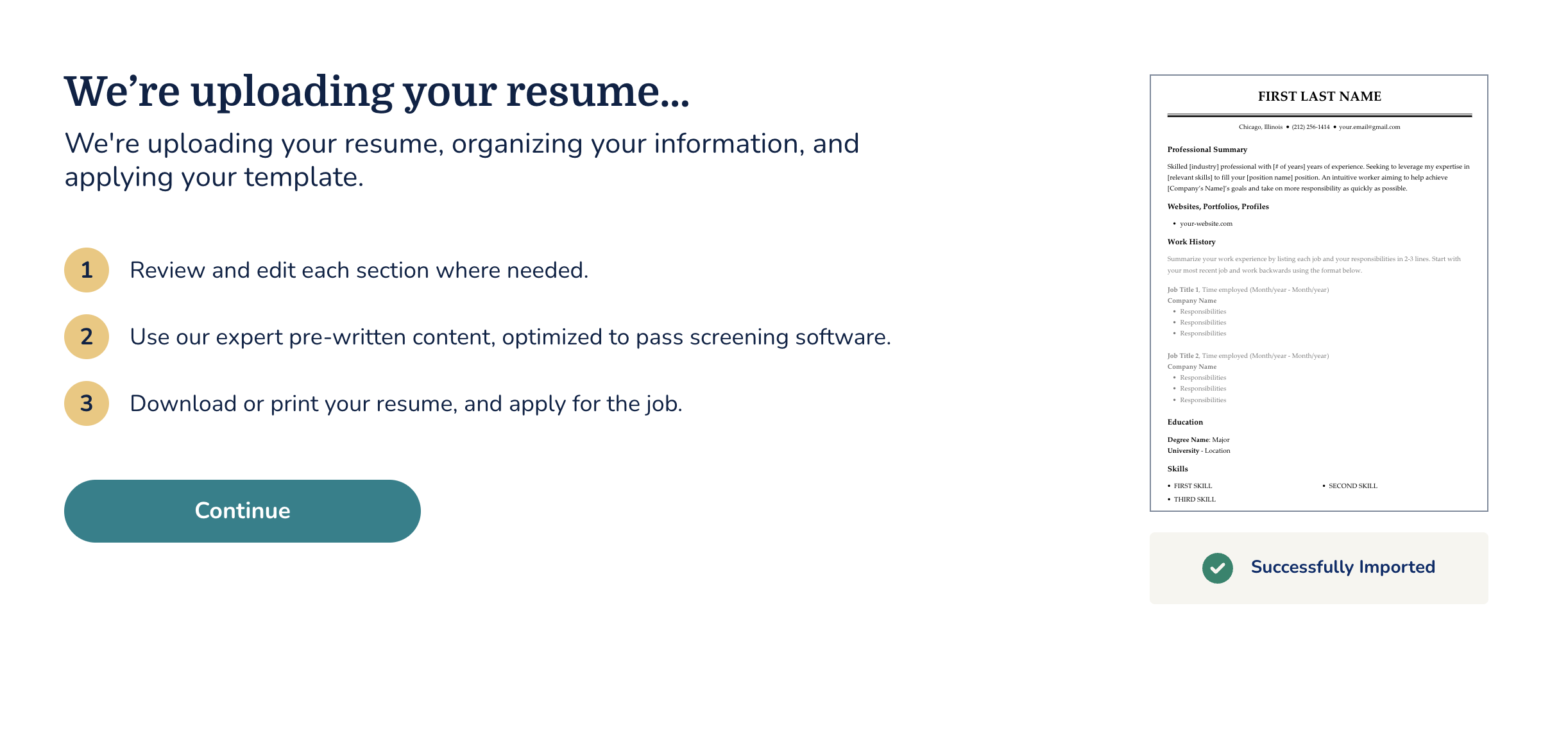
When you upload an existing resume, MyPerfectResume’s Resume Builder will transfer your information into your selected template.
The builder is optimized for screens of all sizes, so you won’t have to worry about formatting issues. You can improve your resume by customizing each section with curated content and expert tips.
You can use our free ATS Resume Checker to scan your resume against over 30 criteria and get actionable feedback to improve your resume score.
3. Add professional content
Explore how to use our free content suggestions throughout your resume.
When you use MyPerfectResume’s Resume Builder to create a resume, click or tap the lightbulb icon to get expert tips and insights every step of the way.
Experience bullet points
Ensure that your resume’s work history section stands out to hiring managers by adding job-specific work history bullet points written to align with industry expectations.
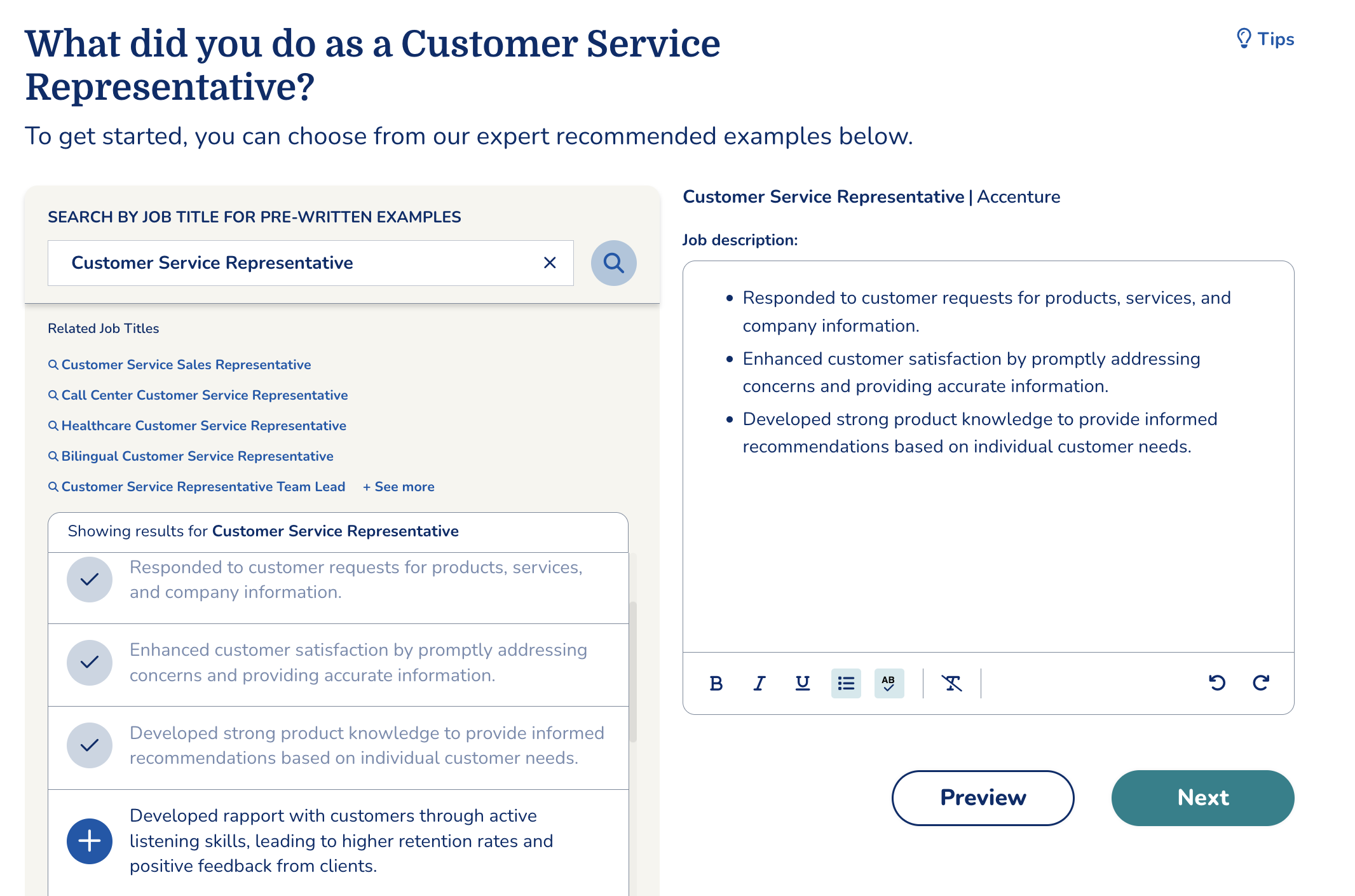
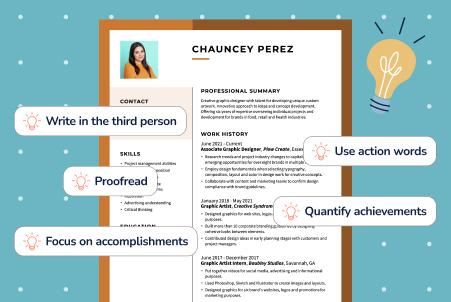
Remember to quantify your accomplishments with numbers and percentages that demonstrate how you made a positive impact in past roles.
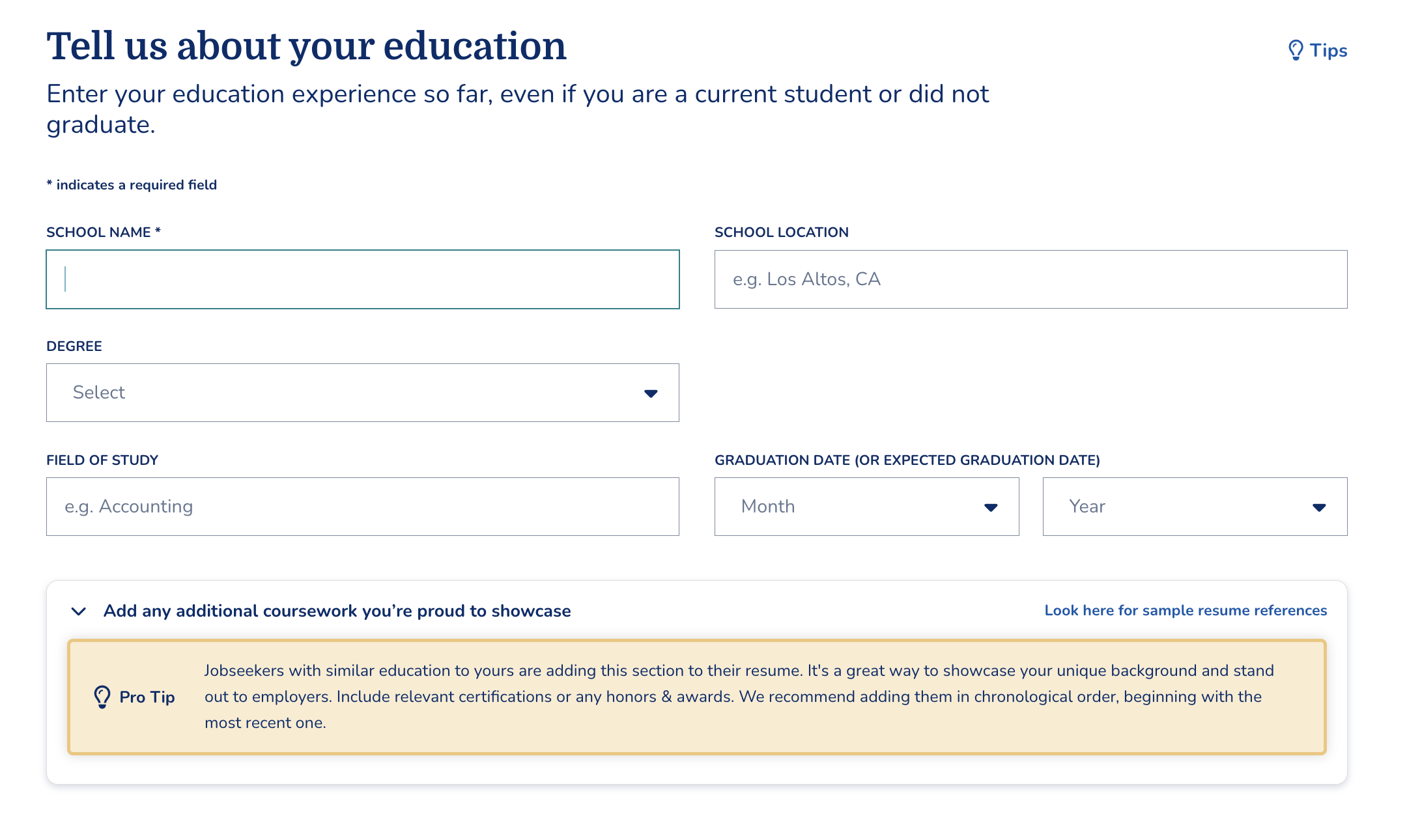
Education credentials
Easily create an organized and impactful resume education section by adding your information to the relevant fields and browsing pro tips.
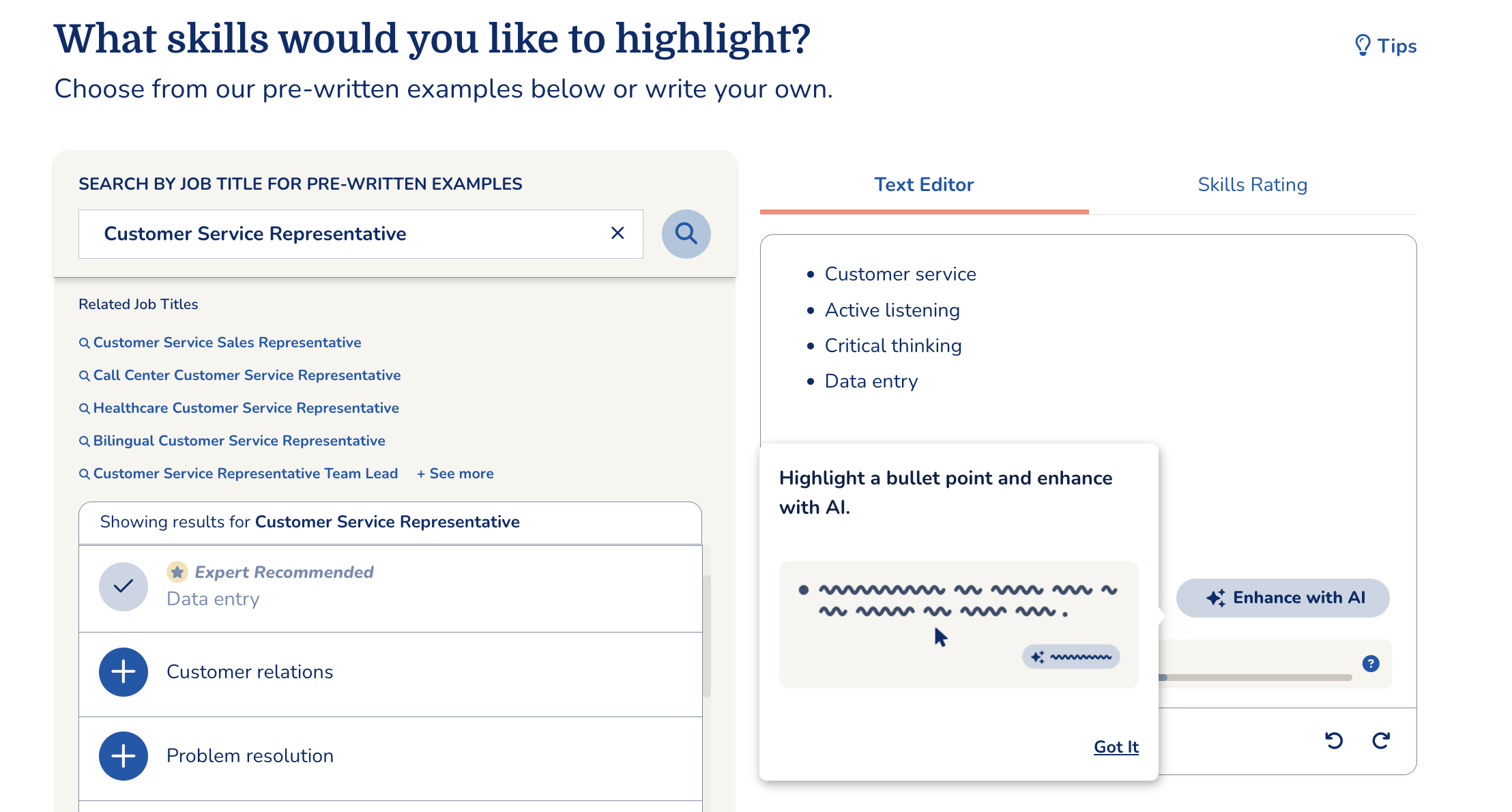
Relevant skills
Add resume skills tailored to your previous roles and target job title. Explore AI-powered suggestions to enhance grammar, clarity, and readability.
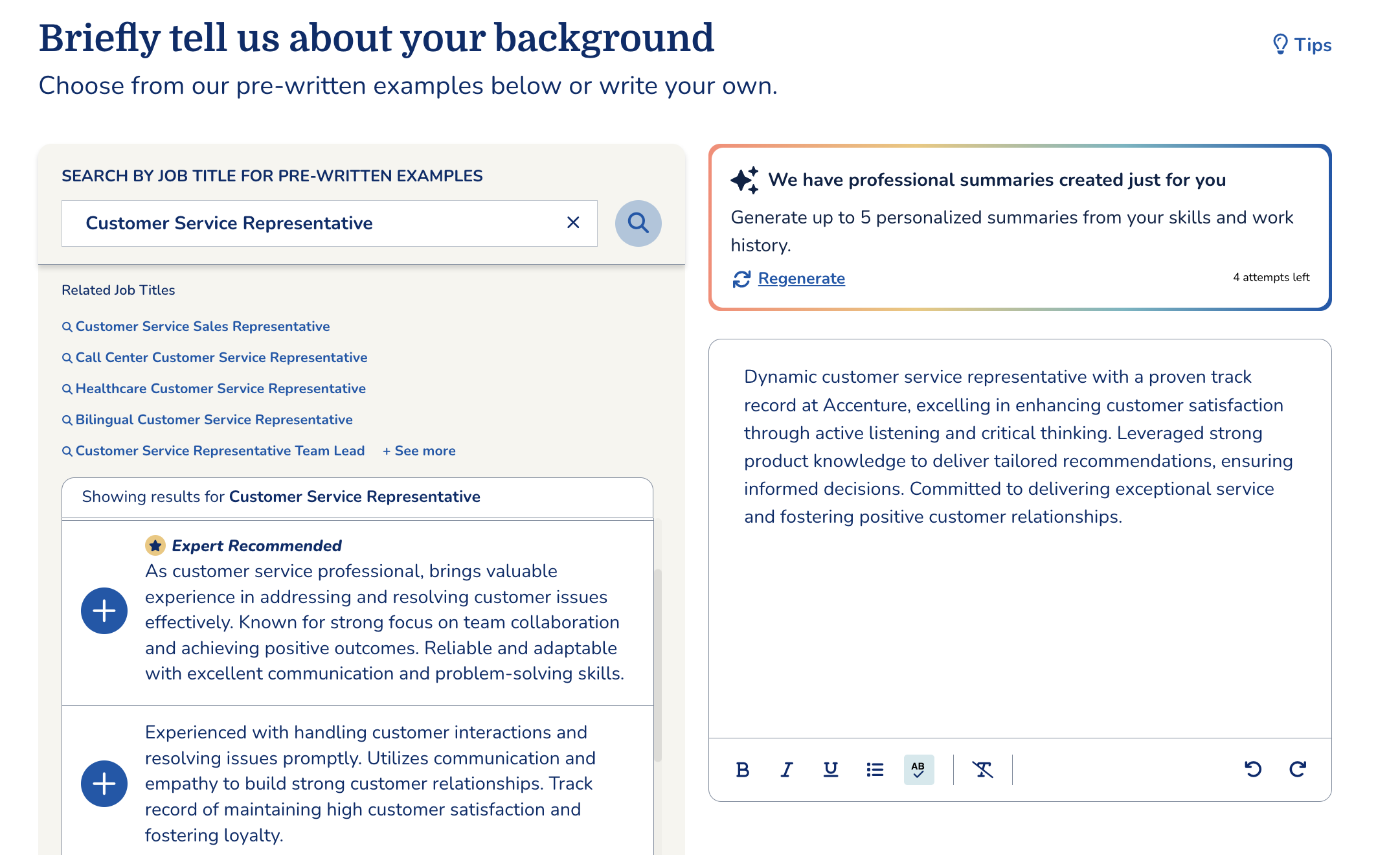
Professional summary
You can use MyPerfectResume’s Resume Builder for free to generate professional summaries from your skills and work experience or add professionally written suggestions for your job title.
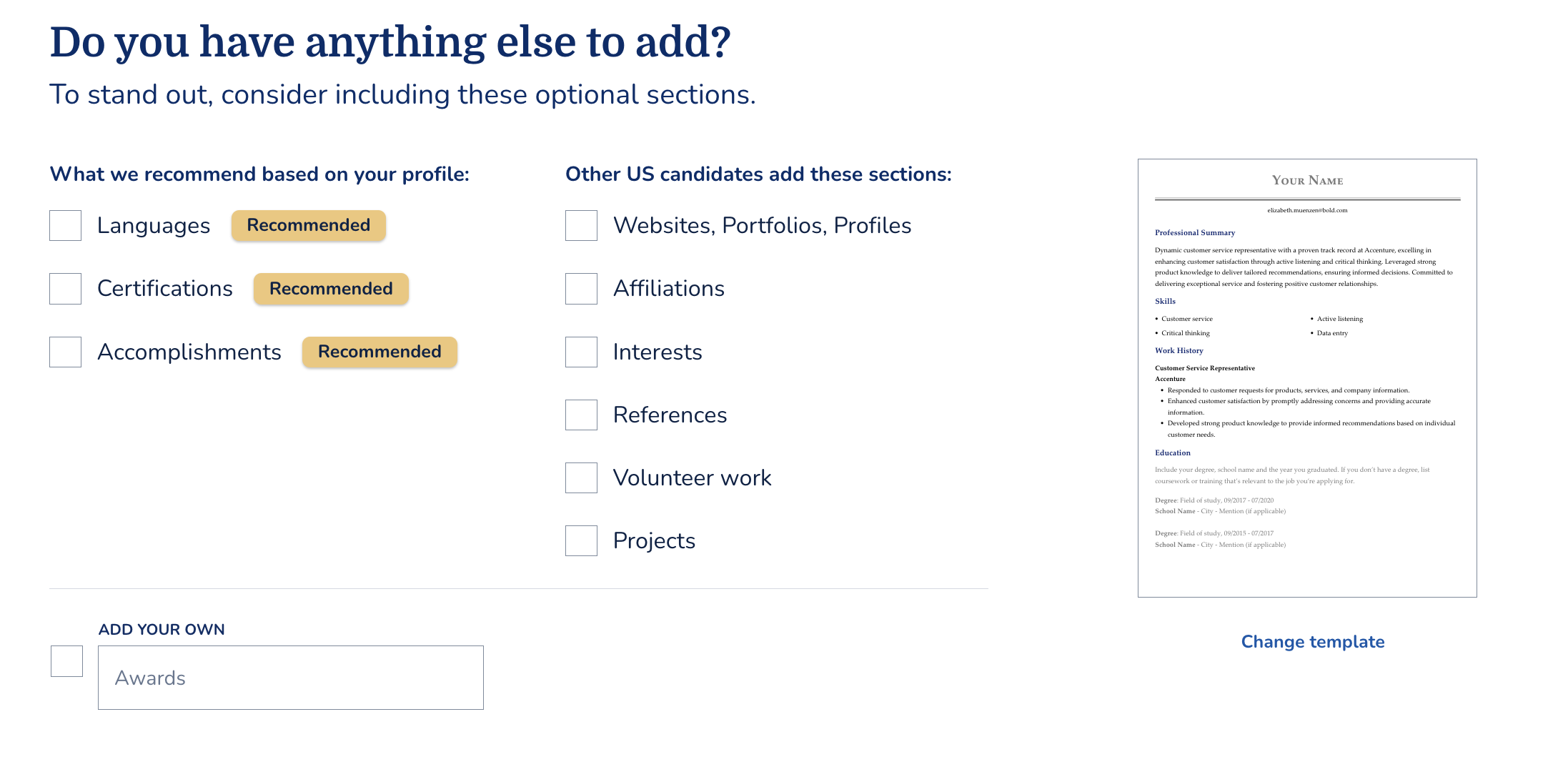
Optional sections
Easily add additional sections to capture the nuances of your skills and experience. MyPerfectResume’s expertly crafted resume examples offer additional inspiration for sections to include on your resume.
4. Create a free account and download your text resume
Once you’ve finalized your resume, click on “Download” and select “Plain Text (.txt)” from the format options listed under “Download resume as.”
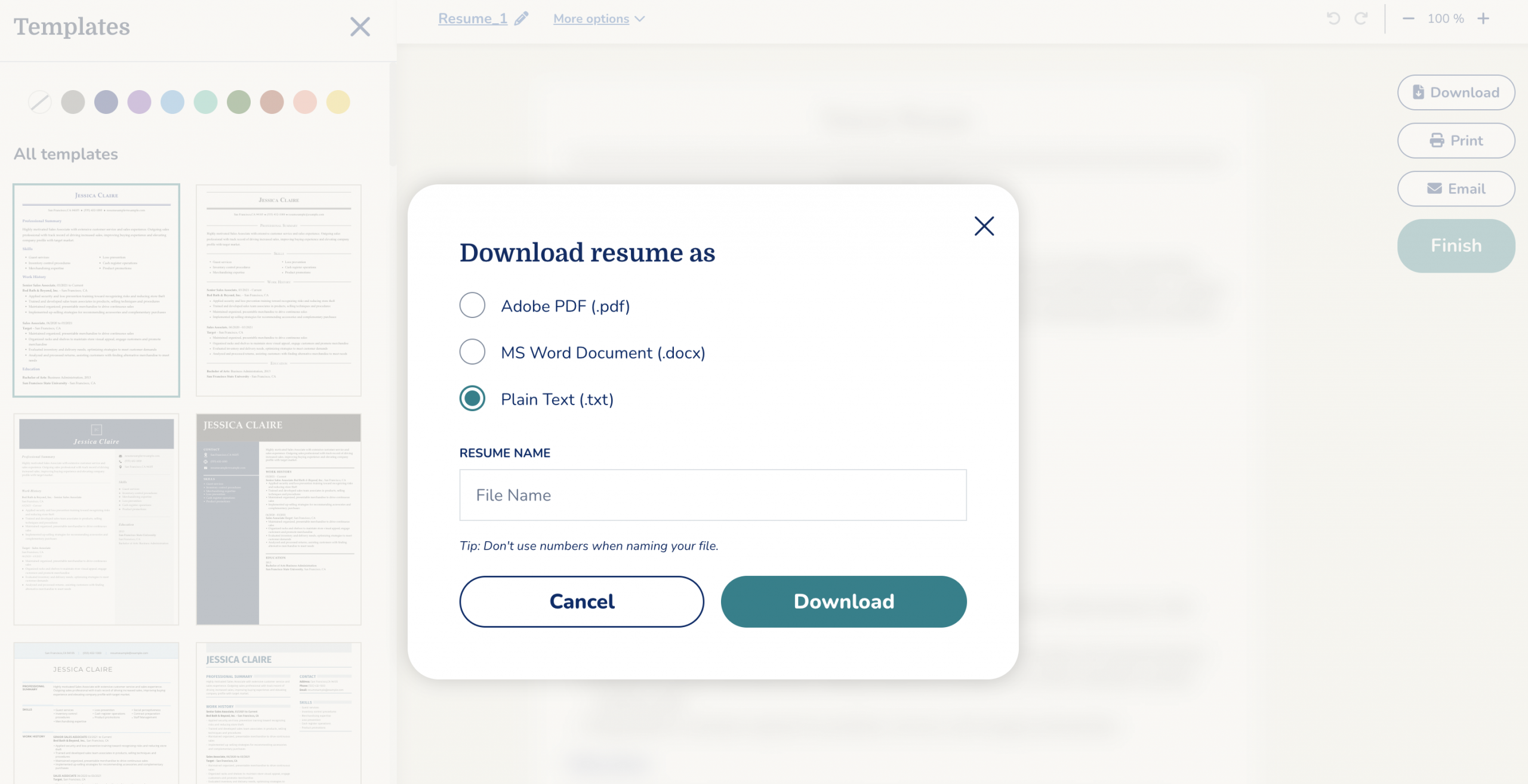
You will see the following pop-up to create your free Resume Builder account for MyPerfectResume. You will not be required to enter any credit card or billing information to create your free account.
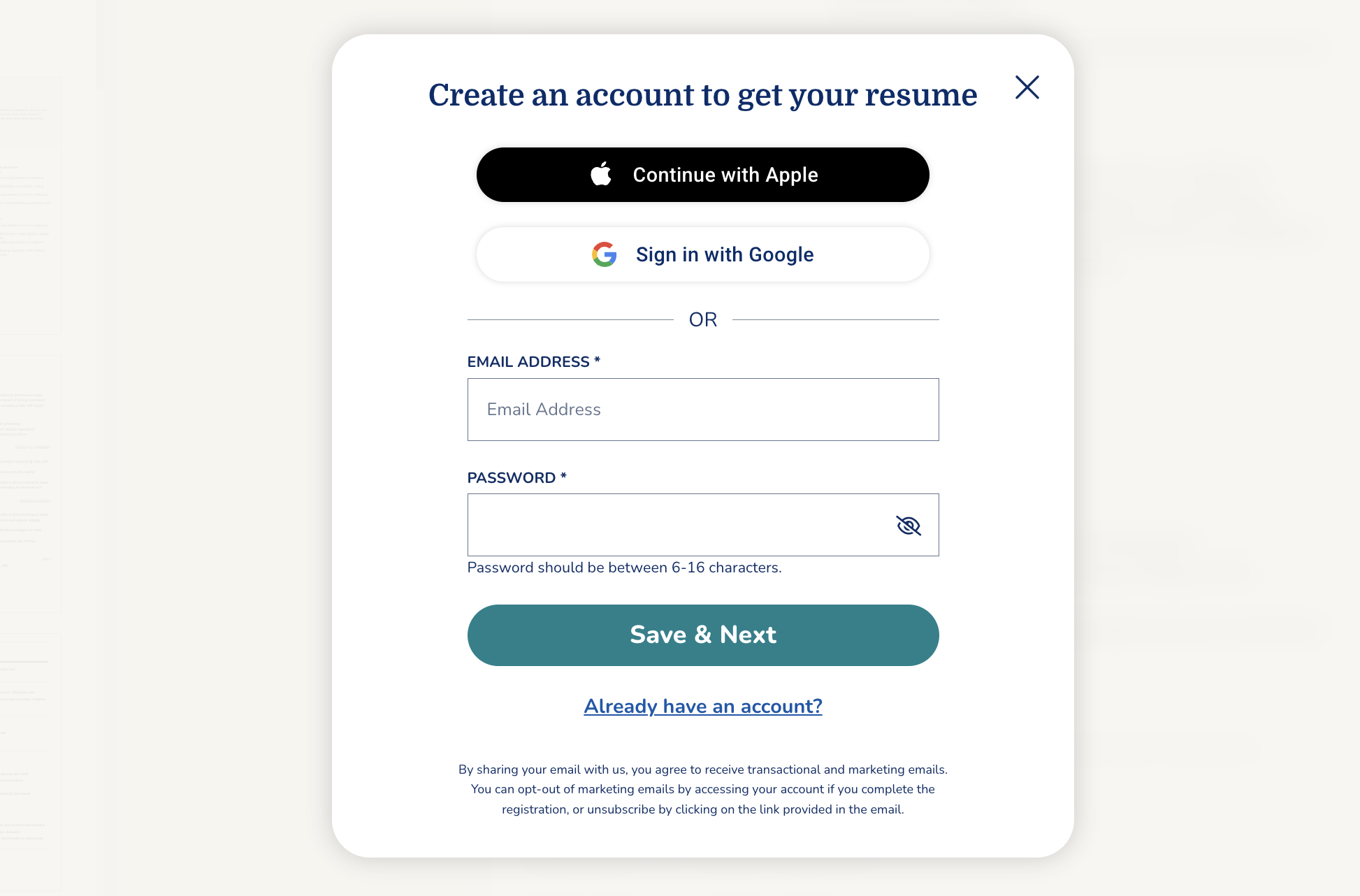
Once you create your account using your preferred contact information, you will be directed to name, download, and access your plain text resume from your desktop or mobile device.
Generate a Matching Cover Letter
You can also use MyPerfectResume’s Cover Letter Generator for free to generate a cover letter based on your resume or create a new one with step-by-step prompts and personalized content suggestions.
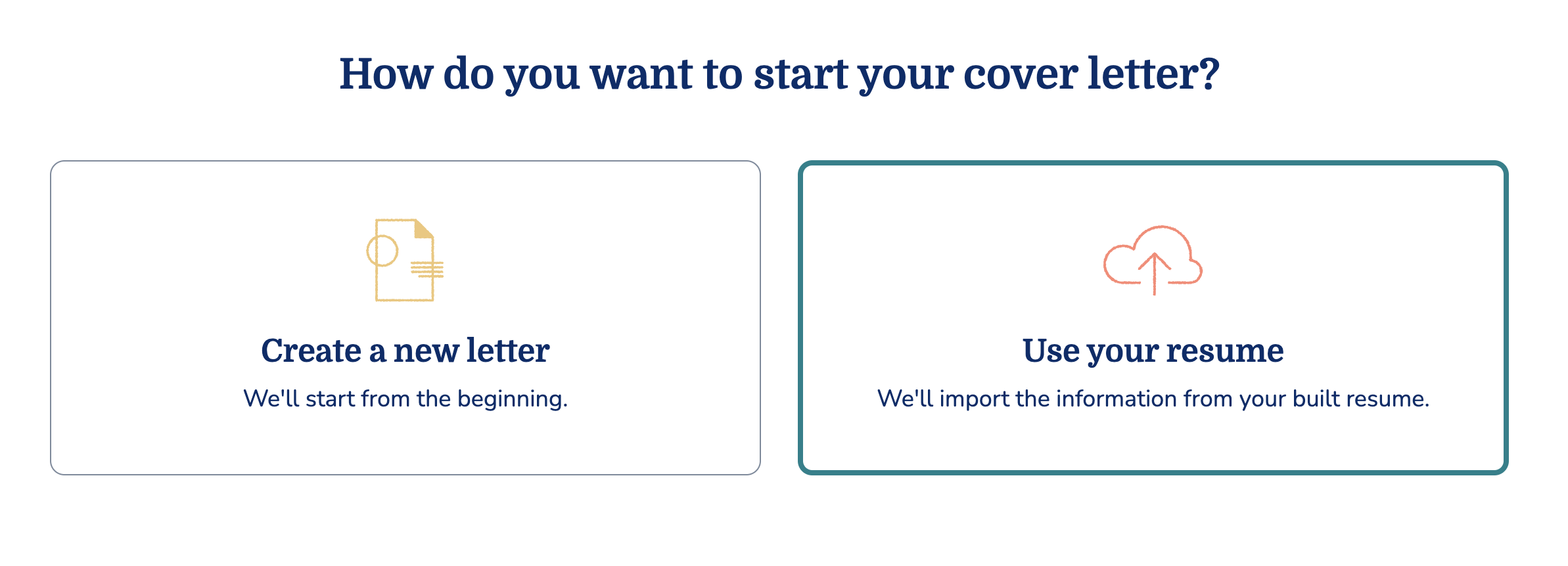
You can download a plain text version of your cover letter or explore our premium plans to download professional cover letter templates in multiple file formats, including PDF and Word.
Key Takeaways
- You can use MyPerfectResume’s Resume Builder for free to access tailored content suggestions, expert tips, and unlimited downloads in plain text (.txt) format.
- Our Resume Builder offers professionally written and AI-curated content suggestions for each section of your professional resume.
- Explore premium plan options for additional features, including expertly designed templates and downloads in PDF and Word format.
FAQ
Can I download my resume for free?
You can build and download resumes in plain text (.txt) format for free on MyPerfectResume. You can also use our professionally written content suggestions and expert writing tips for free. However, you will need a premium plan to access professional templates and downloads in PDF or Word format.
What is a plain text resume?
A plain text resume is a version of your resume that contains only basic text — no formatting like bold, italics, underlining, bullet points, tables, or images.
It’s usually saved as a .txt file (ASCII format), designed to be readable by applicant tracking systems (ATS), and pasted directly into online forms.
How do I make my resume ATS-friendly?
Optimizing your resume for applicant tracking systems (ATS) is essential for getting past the software that many employers use to screen and organize job applications.
Here are a few best practices to consider for creating an ATS-friendly resume:
- Use a clean, traditional resume format. The reverse-chronological resume format is preferred by most employers and is easily scanned by ATS.
- Stick to standard fonts like Arial, Calibri, or Times New Roman. Use simple bullet points like hyphens or asterisks.
- Use standard section headings (e.g., Summary, Work Experience, Skills). Avoid placing content in tables, columns, text boxes, and graphics.
- Incorporate keywords from the job description by matching the skills and terms used in the listing with your qualifications.
Explore our ATS-friendly resume guide for additional tips and examples. MyPerfectResume’s Resume Builder helps you make your resume ATS-friendly with tailored content and professional templates.
Rate this article
How to Use Our Resume Builder for Free


Elizabeth is a Certified Professional Resume Writer (CPRW) and a member of the Professional Association of Resume Writers & Career Coaches. She is committed to helping job seekers navigate the job market and succeed in their careers.
More Articles by Elizabeth Muenzen, CPRWShare this page
 Add MyPerfectResume as a preferred source on Google
Add
Our customers have been hired at:*Foot Note